Command Center on Docker#
It will always do better and be more secure to develop and test with a more production like environment, without most of the shortcomings any other setup will give. Docker and Docker Networks can mimic a closed environment that can equal a production environment, and also provides tools like Advanced image analysis - by Docker Scout.
Volumes & Network#
For a full configuration combined with IIS (Reverse-proxy and Benefitmanager) behind Traefik. Have a look at Tasper/benefits/container-base/README
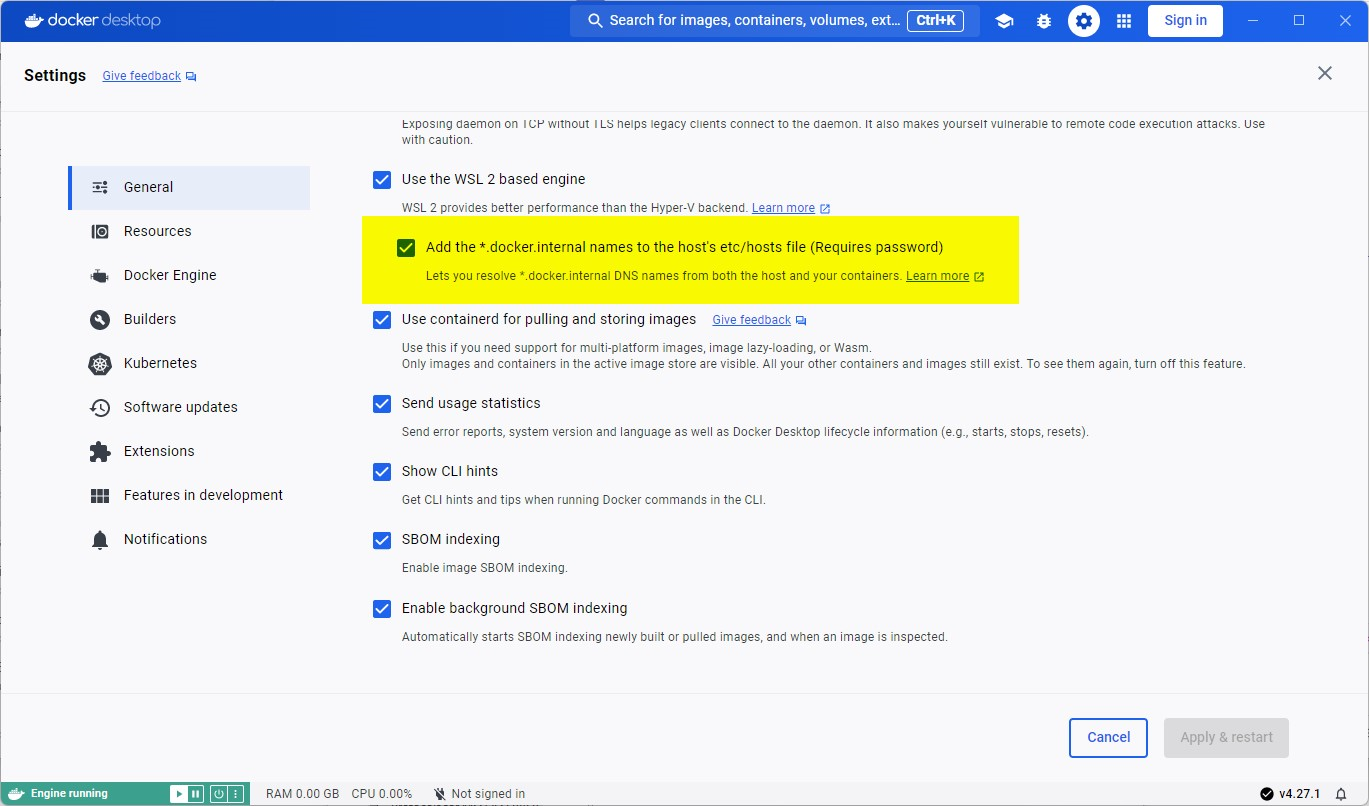
To enable communication between Docker containers and the Host possible, we use the hostname host.docker.internal from inside the docker containers. But this is also possible from the Host, for this we have to tik a checkbox in the configuration of DockerDesktop.
Shared Network#
We need to create a shared proxy network to communicate with the other containers that we connect to this network. Open a terminal or command prompt and run the command: docker network create proxy -
this will create a bridged network to connect our containers, and make them resolve by name within docker.
In compose.yaml this network is defined as external.
Certificate Volume#
docker volume create traefikme-certs
this will create a volume we can use to share TLS certificates between our containers.
The external volume is defined in the volumes section of the compose configuration.
BCS internal CA chain (mTLS between services)#
Internal service-to-service traffic that uses mTLS (e.g. BFF → BMO CC) trusts
a shared BCS Certificate Authority chain. Public certs of the root and
intermediate live in /docker/ca/ and are baked into every CommandCenter
runtime image via the runtime-base stage in the root Dockerfile. The
build step copies any *.crt from that folder into
/usr/local/share/ca-certificates/ and runs update-ca-certificates, so
containers automatically trust leaf certs issued from the chain — no
DangerousAcceptAnyServerCertificate needed.
Private signing keys for the root and intermediate must never live in
the repo or any image. docker/ca/.gitignore blocks *.key, *.pem,
*.pfx, *.p12, *.pkcs12. See docker/ca/README.md for layout details.
Per-environment leaf certs (server cert, client cert) are mounted into
containers at runtime as docker secrets pointing at ./.dev-certs/ (which
is gitignored). The compose file declares them under the top-level
secrets: section.
Frontend build (pnpm workspace)#
The repo is a pnpm workspace — pnpm-workspace.yaml, pnpm-lock.yaml, and a thin root package.json live at the repo root, with the SPA package at ClientApps/command-center/. Backend Docker builds use the repo root as their build context; the frontend Dockerfile keeps its primary context at ClientApps/command-center/ and pulls workspace metadata in via a BuildKit named build context.
Why this matters#
pnpm install --frozen-lockfile is the deterministic install mode used in Docker (and CI). It requires pnpm-lock.yaml to match package.json exactly. Skipping the lockfile (plain pnpm install) does fresh resolution against the npm registry every build — slow and prone to transient network failures (EAI_AGAIN, ECONNRESET).
Compose wiring#
# compose.yaml — commandcenter-frontend
build:
    context: ClientApps/command-center
    dockerfile: Dockerfile
    additional_contexts:
        workspace_root: .   # relative to the project directory (= repo root)
Path resolution rule: additional_contexts paths are resolved against the project directory (the directory containing the compose file), not against build.context. Since compose.yaml lives at the repo root, workspace_root: . points at the repo root.
Dockerfile pattern#
The Dockerfile copies workspace files from the named context, replicates the on-disk layout under /app, and runs a frozen-lockfile install:
WORKDIR /app

COPY --from=workspace_root pnpm-workspace.yaml pnpm-lock.yaml package.json ./
COPY package.json .npmrc ./ClientApps/command-center/

RUN \
    --mount=type=cache,id=pnpm-store-${TARGETPLATFORM},target=/pnpm/store,sharing=locked \
    pnpm install --frozen-lockfile

WORKDIR /app/ClientApps/command-center
COPY . .
The pnpm-store BuildKit cache mount persists between builds — packages aren't redownloaded after the first cold build.
Lockfile sync workflow#
When you add or change a dependency in ClientApps/command-center/package.json:
- Run
pnpm installon the host (fromClientApps/command-center/or the repo root) sopnpm-lock.yamlupdates to match. - Commit both
package.jsonandpnpm-lock.yamltogether. - Rebuild the docker image —
--frozen-lockfilewill use the new lockfile.
If the lockfile drifts (forgot to run pnpm install after editing package.json), the docker build fails fast with ERR_PNPM_LOCKFILE_CONFIG_MISMATCH — fix is one host-side pnpm install then rebuild.
Network resilience#
Both .npmrc files (root and ClientApps/command-center/) include:
This bumps per-fetch timeout to 5 minutes and adds 5 retries with 20s–2min exponential backoff. Applies to both host installs and the Docker build.
BuildKit version#
additional_contexts requires BuildKit 0.10+ / Docker 23+. Docker Desktop on Windows ships with current BuildKit. Older engines reject the field at compose parse time — easy to detect.
Environment Variables#
It is possible to use environment variables in the application, this helps when running docker containers and using docker compose. To use these variables in the compose-files, we add them to the services as a file reference.
these .env files are ignored by git to prevent accidentally oversharing.
A template for these files can be included as .env.template, .env-my-app.template for reference.
To use the a template simply copy and edit the content in the without the extension .template.
docker compose will by default always use .env as default for all environment variables
Traefik (me)#
When running the application in docker, with docker compose, we use Traefik and the domain *.traefik.me this will always resolve to 127.0.0.1 (localhost).
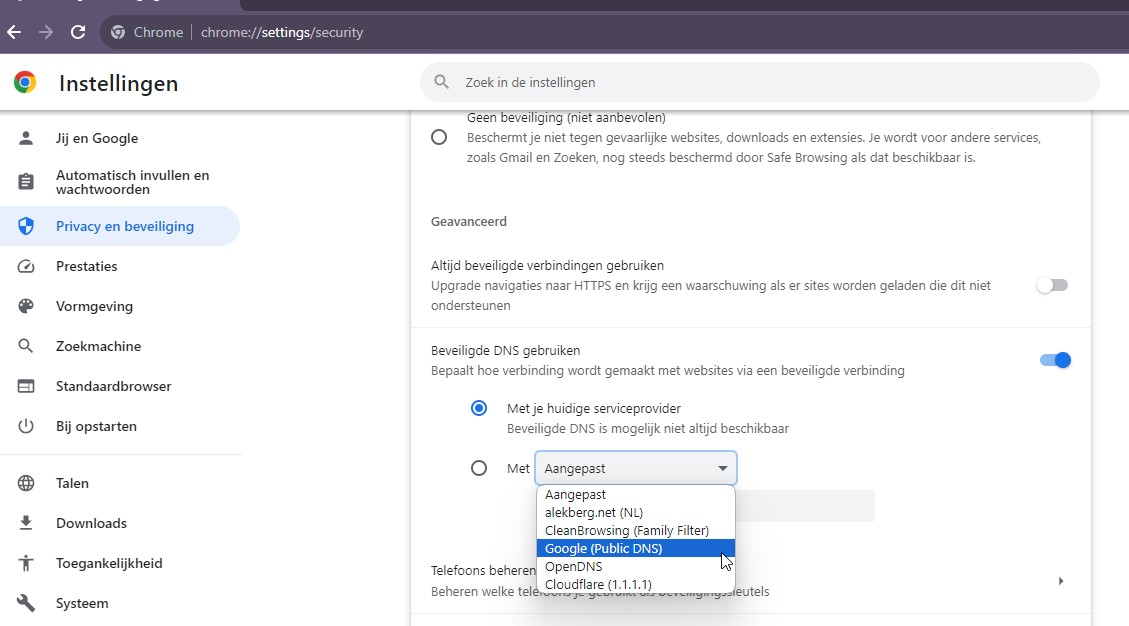
Failed to resolve, in some cases this may run in to a DNS provider issue, where the DNS will not resolve. To get around this issue, we can use a custom DNS in Chrome, Edge, etc..
Basics on DNS resolution flow.
sequenceDiagram
  participant H as Host
  participant D as DER
  participant F as Firewall
  participant R as Resolver
  participant RH as Remote host
  H->>R: DNS Query (*.traefik.me)
  R->>D: DNS Answer (127.0.0.1)
  D->>F: Open FW
  D->>H: DNS Answer (127.0.0.1)
  H-->>RH: Traffic
  RH-->>H: Traffic
D->>F: (TTL Expired) Close FWNow for always testing and using valid TLS connections we can't use regular localhost and ports, because this will require invalid Self-signed certificates. Self-signed certificates when combined with self-signed Root (and Intermediate) Certificates that are stored in the Trusted certificate store, do provide a layman's alternative. Read more about traefik.me.
Using goldenspiral.nl#
There is currently a zip-file docker-acme-volume.zip that you can find in Teams - "Team Benefits Development (internal)" select files and "General / CommandCenter"